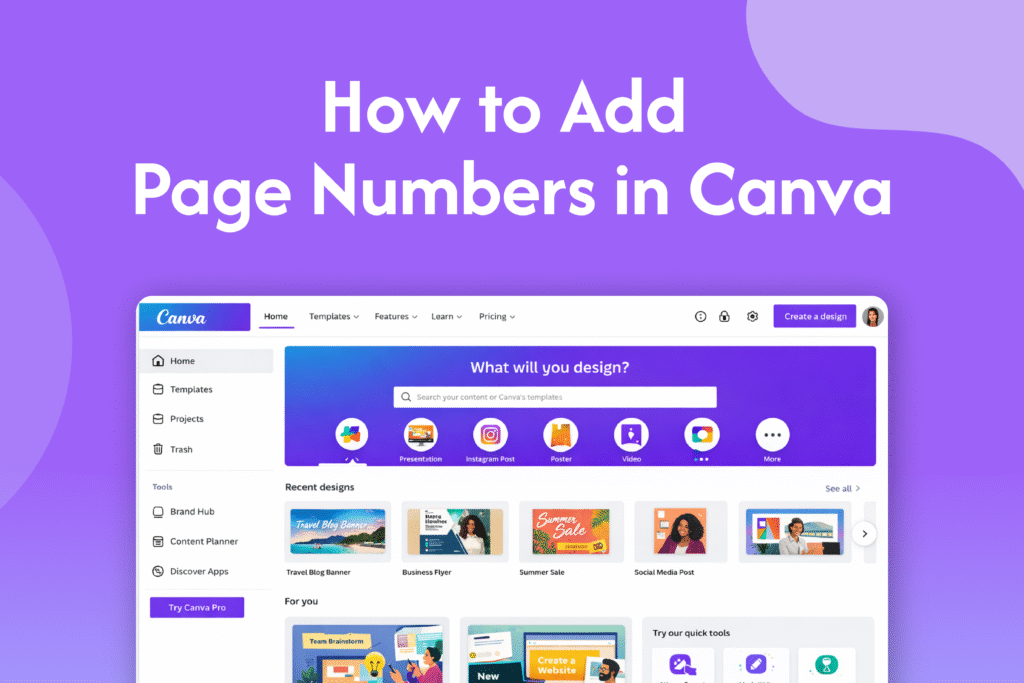
Learning how to add page numbers in Canva helps you keep multi-page designs like presentations, ebooks, and reports well organized.
Add page numbers manually
In Canva:
- Open your design
- Go to the page where you want the number
- Press T to add a text box
- Type the page number (e.g., 1, 2, 3)
- Position it in a corner or footer
👉 Repeat this on each page with updated numbers
Duplicate pages to save time
- Add a page number to one page
- Duplicate the page
- Update only the number on each page
This speeds up the process for longer designs.
Keep page numbers consistent
- Use the same font and size
- Place numbers in the same position on every page
- Align them properly for a clean look
Why Canva doesn’t auto-number pages
Unlike tools like Google Docs, Canva currently doesn’t offer automatic page numbering, so you need to add them manually.
Quick tip
Create one template page with a page number style, then duplicate it across your design to maintain consistency and save time.