If you want to focus on specific parts of your video, learning how to zoom in Premiere Pro helps you create more engaging and professional edits.
Zoom in using Effect Controls (best method)
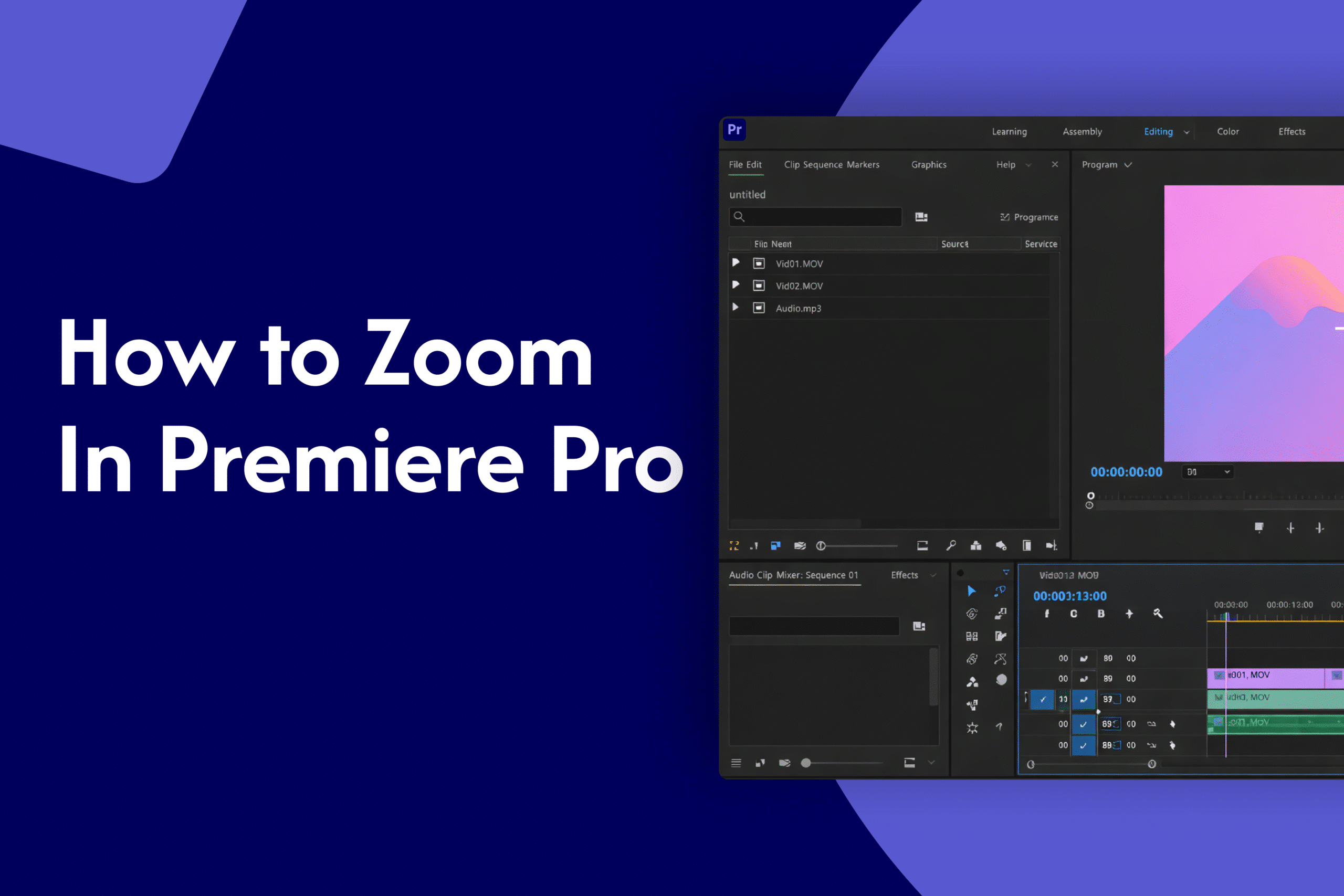
In Adobe Premiere Pro:
- Select your clip in the timeline
- Go to the Effect Controls panel
- Find the Scale option under Motion
- Increase the value (e.g., from 100 to 120+)
This zooms into your video
Add smooth zoom animation (keyframes)
- Select your clip
- Go to Effect Controls → Scale
- Click the stopwatch icon to enable keyframes
- Move the playhead forward
- Increase the Scale value
This creates a smooth zoom-in effect
Adjust position while zooming
- Use the Position setting to center the zoom
Helps you focus on a specific area of the video
Zoom in timeline (for editing)
- Press + (plus key) to zoom into the timeline
- Press – (minus key) to zoom out
This helps with precise editing (not video zoom)
Why use zoom in Premiere Pro
- Highlight important details
- Add motion and engagement
- Improve storytelling in videos
Quick tip
Avoid zooming in too much, as it can reduce video quality. Try to keep the scale increase subtle for best results.