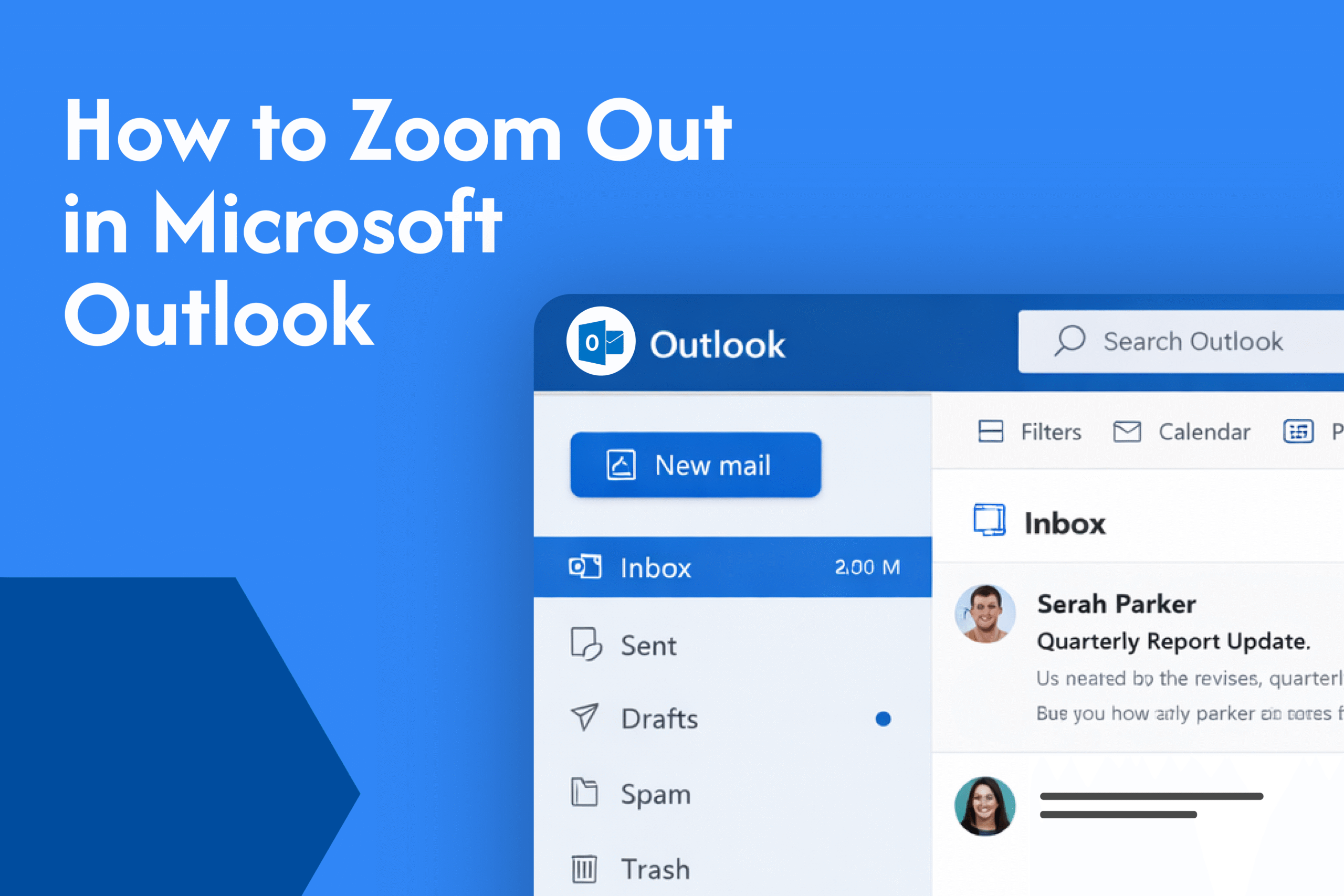
If your emails look too large on the screen, learning how to zoom out in Outlook can help you adjust the view for better readability.
Zoom out using keyboard shortcut
In Microsoft Outlook:
- Press Ctrl + – (minus key) on Windows
- On Mac, press Command + –
👉 This will quickly zoom out and reduce the size of the email view.
Zoom out using the ribbon (desktop)
- Open an email
- Click on the Format Text tab
- Select Zoom
- Choose a lower percentage (e.g., 75% or 50%)
- Click OK
Zoom out in Outlook Web (browser)
If you’re using Outlook in a browser:
- Press Ctrl + – (Windows)
- Press Command + – (Mac)
👉 This zooms out the entire page using your browser settings.
Adjust zoom with mouse
- Hold Ctrl and scroll your mouse wheel down
👉 This will zoom out smoothly
Why zoom out in Outlook
- Fit more content on the screen
- Improve readability
- Reduce scrolling while reading emails
Quick tip
Outlook may reset zoom levels for new emails, so you might need to adjust it again depending on your view settings.