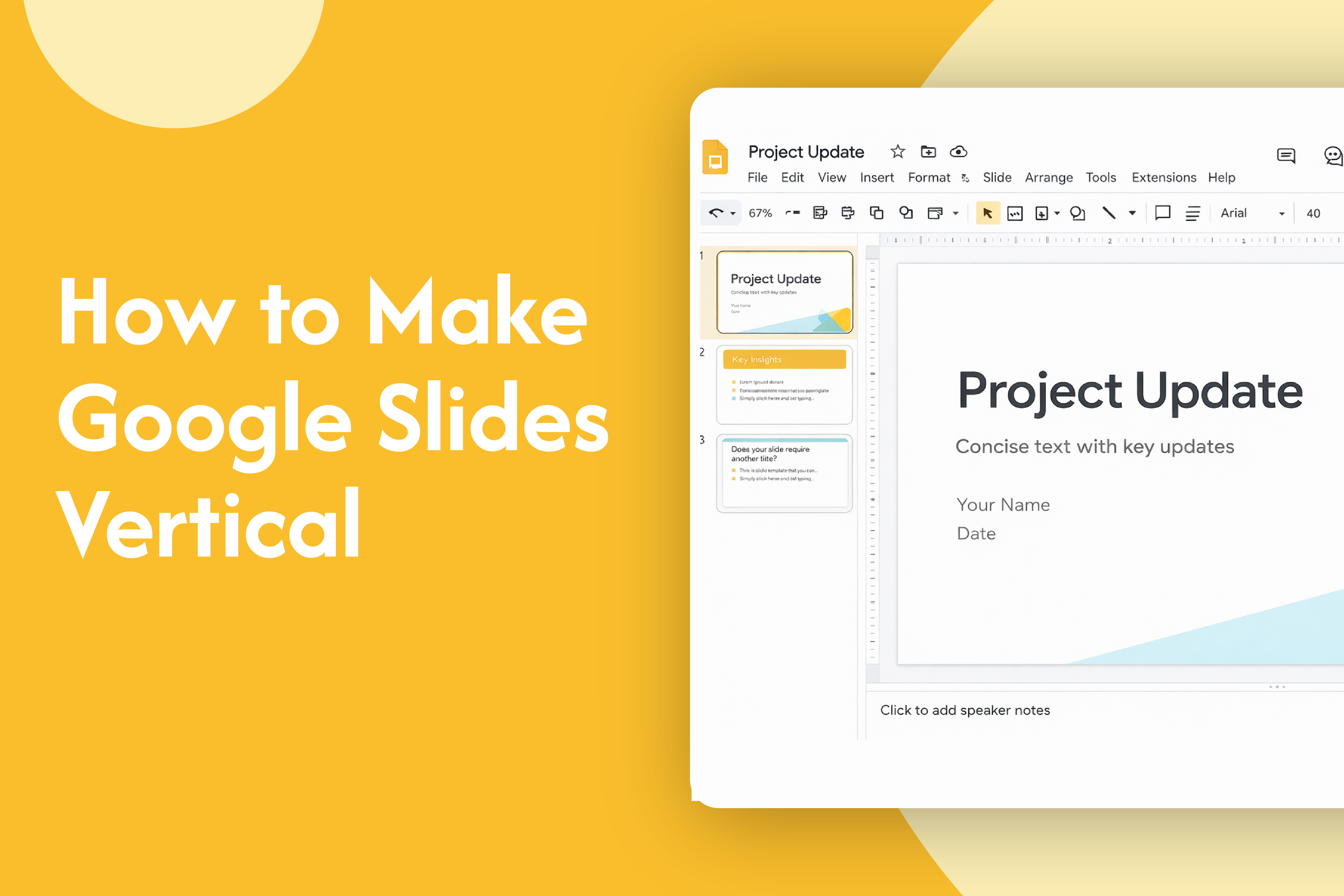
If you want to create mobile-friendly presentations or social media designs, learning how to make Google Slides vertical is very useful.
Change slide orientation to vertical
In Google Slides:
- Open your presentation
- Click on File in the top menu
- Select Page setup
- Click the dropdown (usually shows “Widescreen 16:9”)
- Choose Custom
- Enter dimensions like:
- 9 x 16 (inches) for vertical slides
- Click Apply
Your slides will now switch to vertical (portrait mode)
Common vertical sizes
- 9 x 16 → Best for mobile & reels
- 8.5 x 11 → Document-style layout
- 4 x 5 → Social media posts
Things to keep in mind
- Existing content may shift after resizing
- You may need to adjust text and images
- Use guides to realign elements properly
Why use vertical slides
- Better for mobile viewing
- Ideal for social media content
- Useful for posters and infographics
Quick tip
Create a vertical template once, then reuse it for future presentations to save time.