
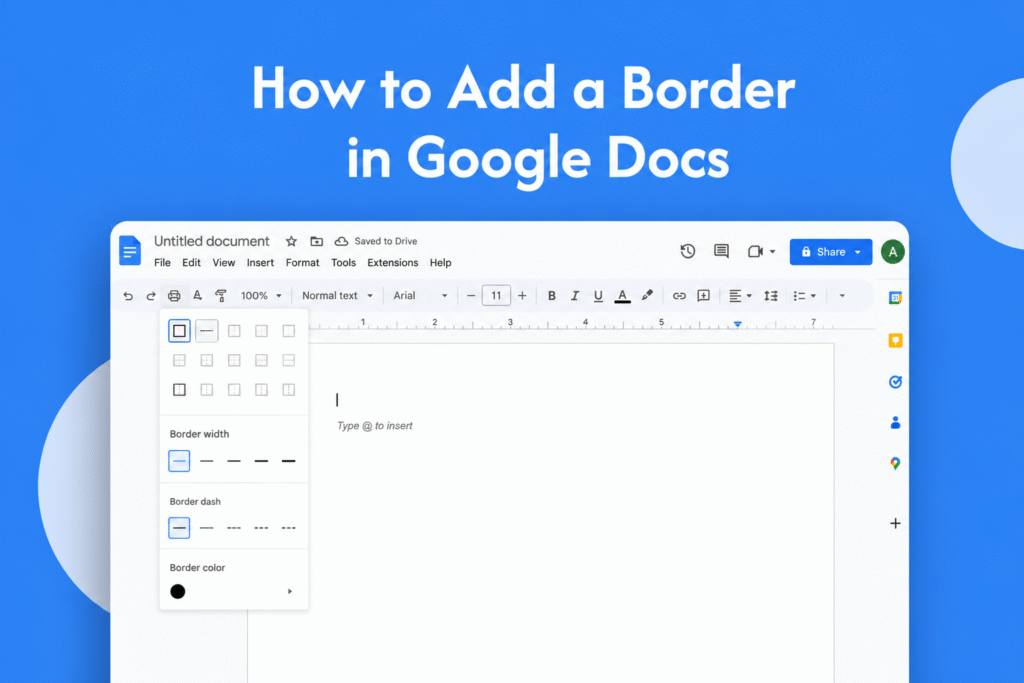
If you want to make your document look more organized or visually appealing, learning how to add a border in Google Docs can help improve your formatting.
Add a border using a table
In Google Docs:
- Open your document
- Click on Insert → Table
- Choose a 1×1 table
- Resize the table to fit your page or content
- Add your text inside the table
→ The table border will act as a document border
Customize the border
- Click on the table border
- Use the toolbar options to:
- Change border color
- Adjust border thickness
- Select border style
→ Customize the border to match your design
Add a border around images or text
- Select the image or text box
- Use border options in the toolbar
→ Adds a border only to that element
Why use borders in Google Docs
- Improve document appearance
- Highlight important sections
- Create cleaner layouts
Quick tip
Use thin borders for professional documents and thicker decorative borders for flyers or invitations.






