
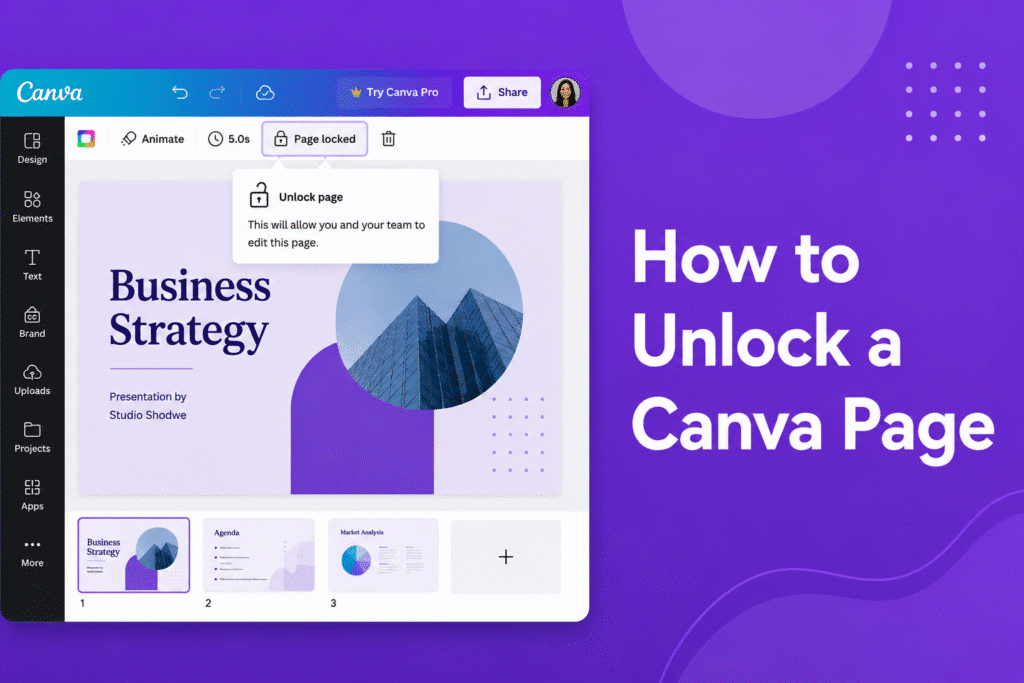
If you can’t edit a page or element in your design, learning how to unlock a Canva page helps you regain editing access quickly.
Unlock a locked page in Canva
In Canva:
- Open your design
- Go to the locked page
- Look for the lock icon on the page thumbnail or toolbar
- Click the lock icon
→ The page will be unlocked and editable again
Unlock locked elements
- Click on the locked element
- Select the lock icon from the toolbar
- Click it again to unlock
→ You can now move or edit the element
Why pages get locked
- Prevent accidental edits
- Keep layouts fixed
- Protect important design elements
Quick tip
Only lock finished elements or pages so you don’t accidentally move important parts of your design later.






