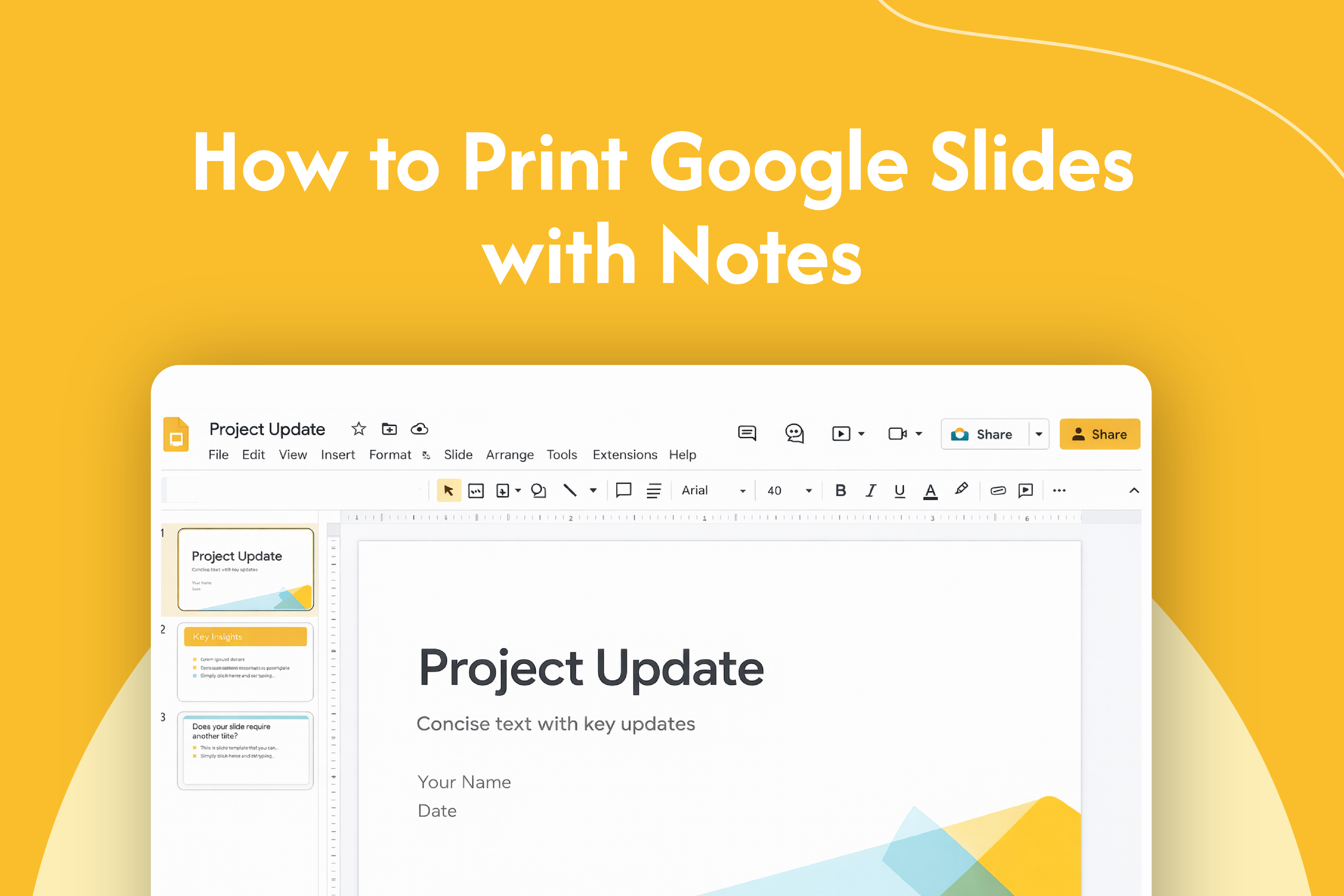
If you want a printed version of your presentation along with speaker notes, you can easily print Google Slides with notes using the built-in print settings.
Print slides with notes (step-by-step)
Follow these steps in Google Slides:
- Open your presentation
- Click on File in the top menu
- Select Print settings and preview
- Click on the dropdown that says 1 slide without notes
- Choose 1 slide with notes
- Click Print
- Select your printer and confirm
Each slide will now print with its speaker notes below it.
Save slides with notes as PDF
If you don’t want to print right away:
- Go to File → Print settings and preview
- Select 1 slide with notes
- Click Download as PDF
This will save your slides along with notes in a printable format.
Quick tip
If your notes are getting cut off while printing:
- Check page layout and margins
- Use PDF preview to ensure everything fits properly