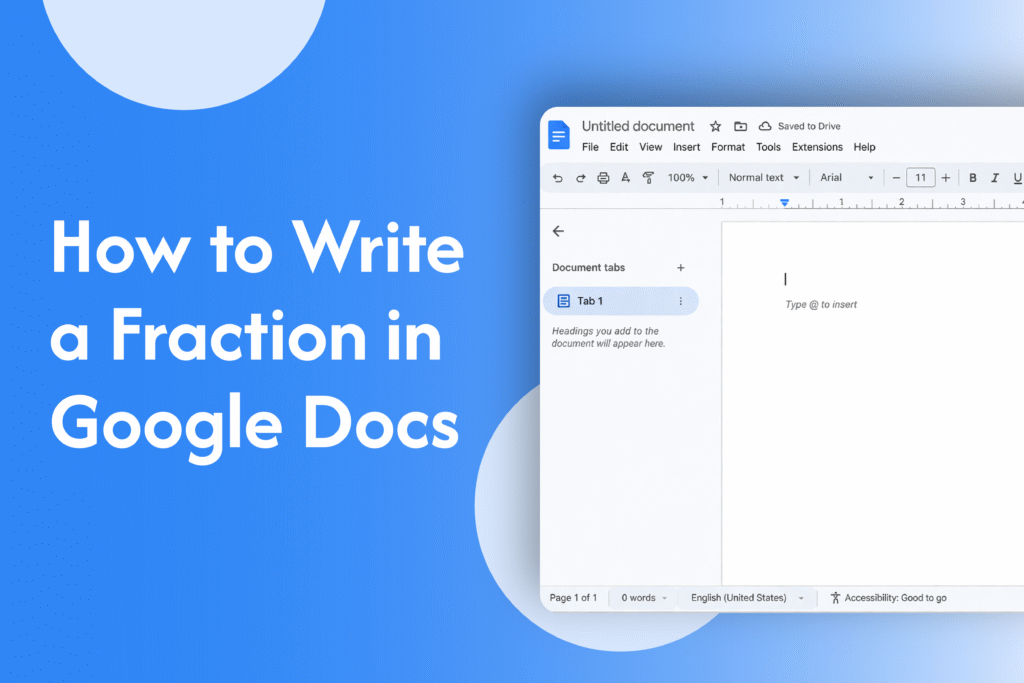
If you’re working on math content or documents, learning how to write a fraction in Google Docs helps you present numbers clearly and professionally.
Use the Equation tool (best method)
In Google Docs:
- Click on Insert in the top menu
- Select Equation
- In the toolbar, click on the Math operations dropdown
- Choose the fraction template (a/b)
- Enter the numerator and denominator
👉 This creates a properly formatted fraction
Use keyboard shortcut (quick way)
- Type
\fracand press Space - Enter the numerator
- Press / or Tab to move to denominator
- Enter the denominator
Use superscript and subscript (manual method)
- Type the numerator
- Add a slash
/ - Type the denominator
- Use Format → Text → Superscript/Subscript if needed
👉 Example: ½ (less formal but quick)
Why use fractions in Google Docs
- Makes math expressions clear
- Improves document formatting
- Useful for assignments, reports, and notes
Quick tip
For professional or academic documents, always use the Equation tool instead of typing fractions manually.