
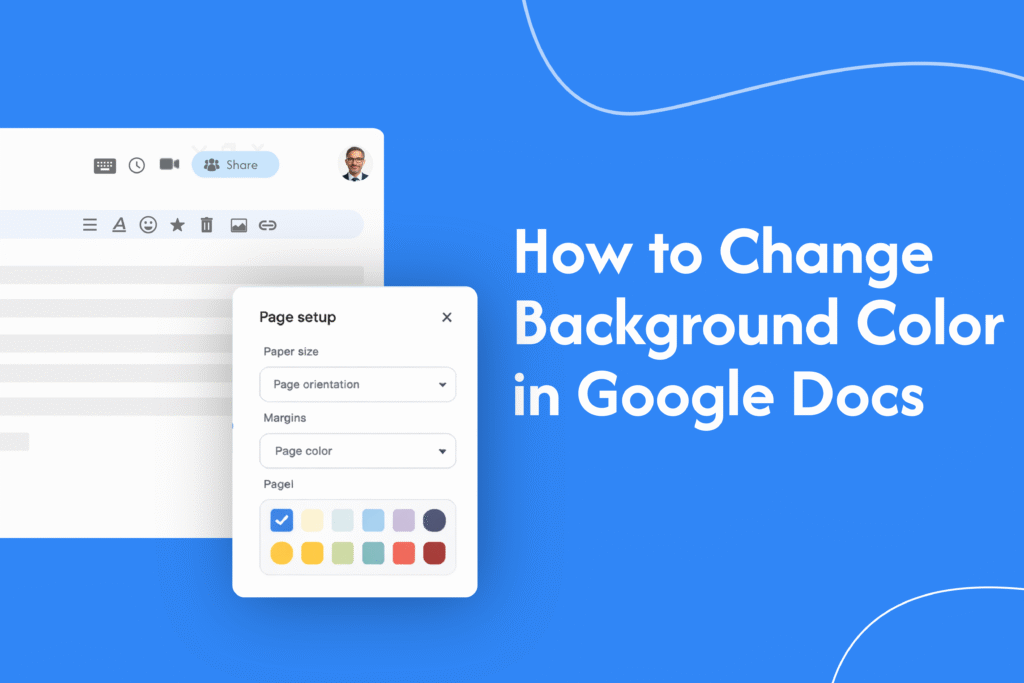
If you want to customize your document or make it visually different, you can easily change the background color in Google Docs using the page setup option.
Change background color using Page Setup
This is the easiest way in Google Docs:
- Open your document
- Click on File in the top menu
- Select Page setup
- Click on the Page color option
- Choose your preferred color
- Click OK
Your document background color will update instantly.
Set background color as default (optional)
If you want all new documents to use the same color:
- In the Page setup window, click Set as default
- Then click OK
Things to keep in mind
- Background color may look different when printed
- Some printers may not print background colors by default
- Light colors are better for readability
Quick tip
If you’re creating a document for sharing or presentation, choose a subtle background color so your text remains easy to read.






