
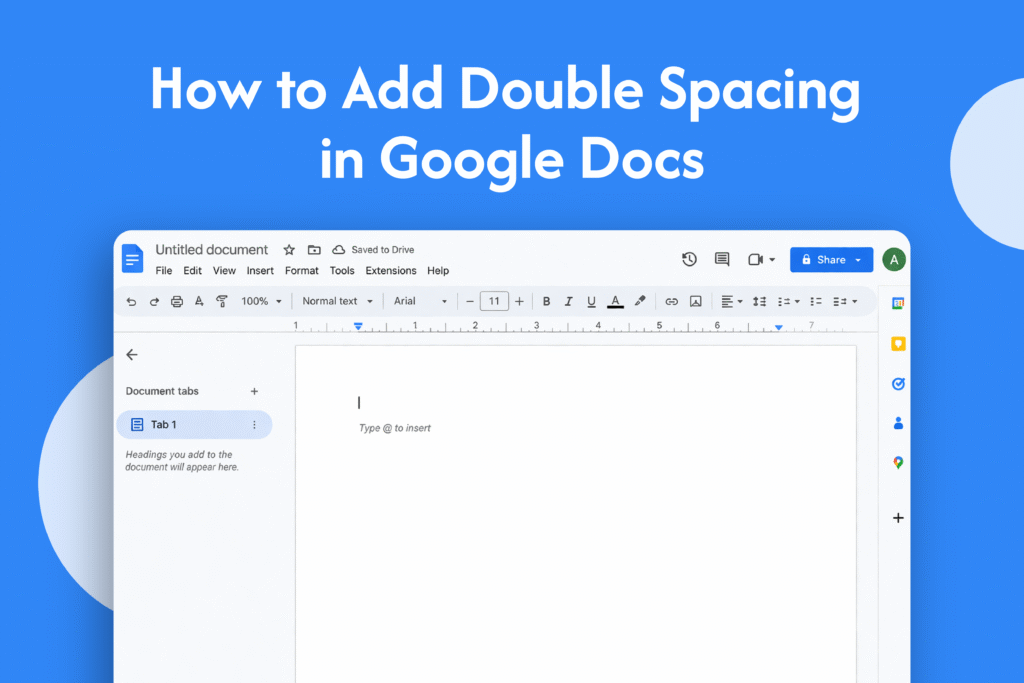
If you’re working on essays or professional documents, learning how to add double spacing in Google Docs helps improve readability and meet formatting requirements.
Add double spacing
In Google Docs:
- Open your document
- Select the text (or press Ctrl + A to select all)
- Click the Line & paragraph spacing icon in the toolbar
- Choose Double
→ Your text will now have double spacing
Using the Format menu
- Click on Format in the top menu
- Go to Line & paragraph spacing
- Select Double
Set double spacing as default
- Apply double spacing to your text
- Go to Format → Paragraph styles → Normal text → Update ‘Normal text’ to match
→ This makes double spacing the default for the document
Why use double spacing
- Improves readability
- Makes editing and reviewing easier
- Required for academic formats (APA, MLA)
Quick tip
Double spacing works best with standard fonts like Arial or Times New Roman for clean and professional formatting.






