
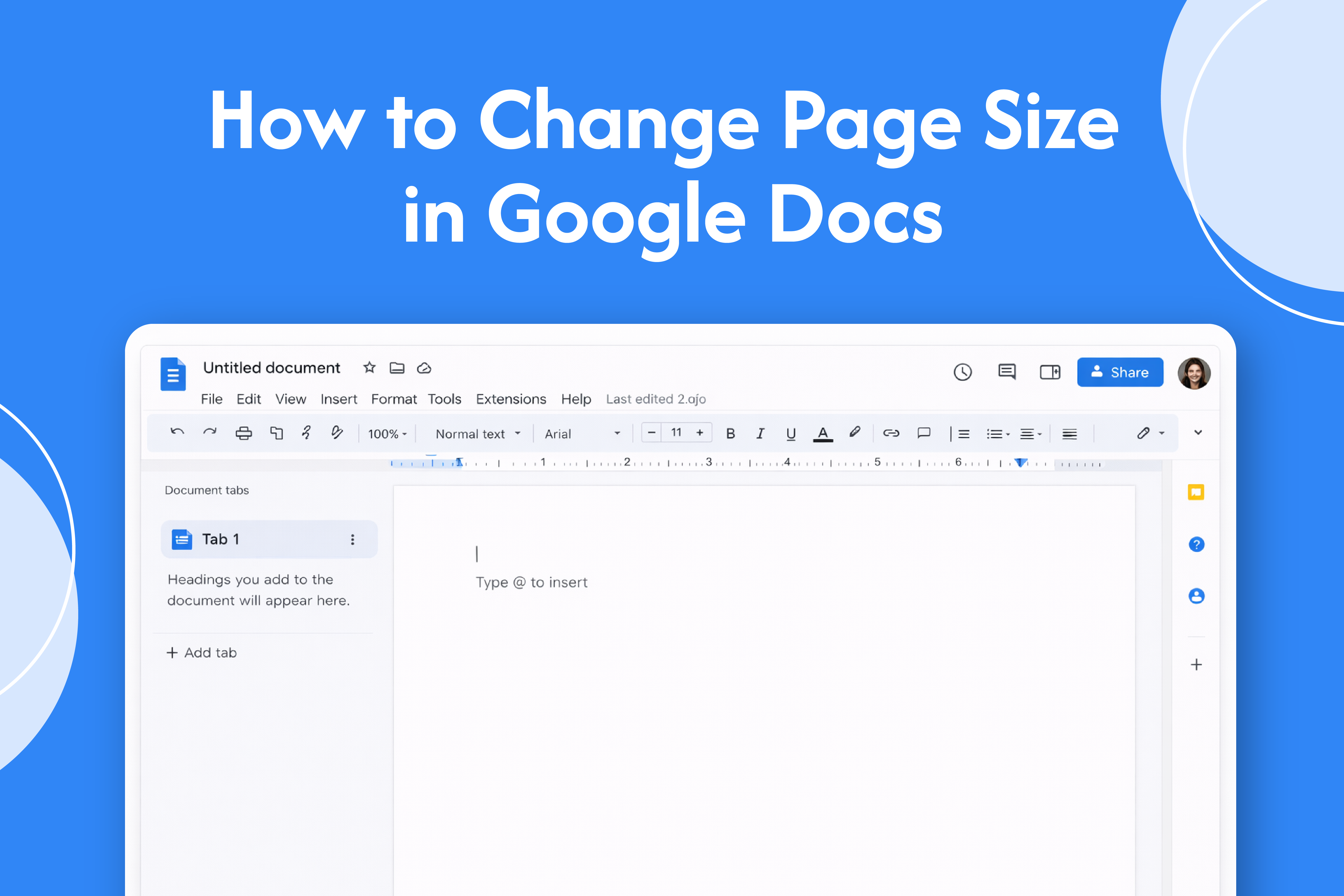
If you need a different layout for printing or formatting, learning how to change page size in Google Docs helps you customize your document easily.
Change page size using Page Setup
In Google Docs:
- Open your document
- Click on File in the top menu
- Select Page setup
- Click on the Paper size dropdown
- Choose your preferred size (e.g., Letter, A4, Legal)
- Click OK
→ Your document page size will be updated
Set page size as default (optional)
- Open Page setup
- Select your desired page size
- Click Set as default
- Click OK
→ All new documents will use this page size
Common page sizes
- A4 → Standard in many countries
- Letter → Common in the US
- Legal → Used for official documents
Why change page size
- Match printing requirements
- Adjust layout for different formats
- Create custom document designs
Quick tip
After changing page size, check your margins and formatting to ensure everything fits properly.






