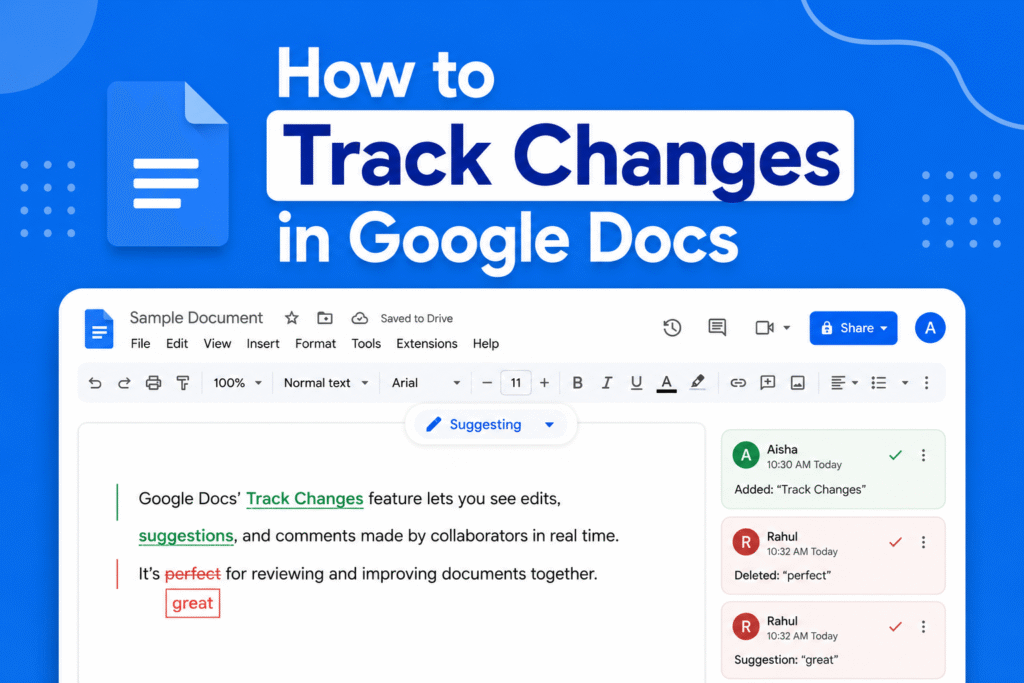
If you’re collaborating on a document, learning how to track changes in Google Docs helps you review edits and suggestions easily.
Turn on Suggesting mode
In Google Docs:
- Open your document
- Click the dropdown in the top-right corner (usually says Editing)
- Select Suggesting
→ Any edits you make will appear as suggestions instead of direct changes
View tracked changes
- Suggested edits appear in different colors
- Comments and edits show on the right side of the document
→ This helps collaborators review changes easily
Accept or reject changes
- Click on a suggestion
- Choose:
- Accept (✓)
- Reject (✕)
→ Updates the document accordingly
Use Version History
- Click on File → Version history → See version history
- View previous edits and contributors
→ Helps track document changes over time
Why track changes
- Improve collaboration
- Review edits before finalizing
- Keep document history organized
Quick tip
Use Suggesting mode instead of Editing mode when collaborating so changes can be reviewed before being applied.