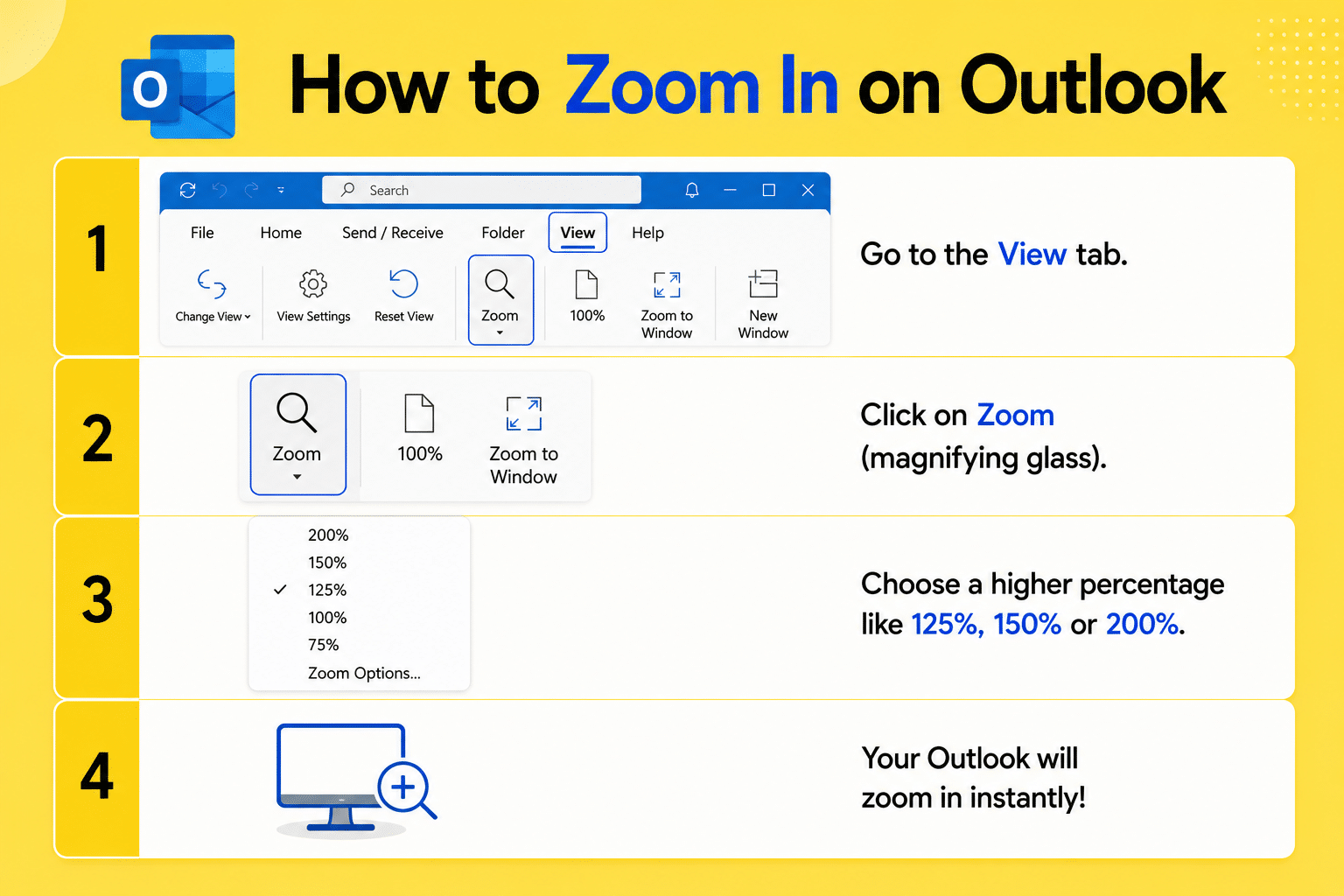
If your emails or text appear too small, learning how to zoom in on Outlook helps improve readability and makes emails easier to view.
Zoom in using keyboard shortcut
In Microsoft Outlook:
- Windows: Press Ctrl + + (plus key)
- Mac: Press Command + +
→ This increases the zoom level instantly
Zoom in using the ribbon (desktop)
- Open an email
- Click on the Format Text tab
- Select Zoom
- Choose a higher percentage (e.g., 125% or 150%)
- Click OK
→ Your email view will zoom in
Zoom in on Outlook Web
If you’re using Outlook in a browser:
- Press Ctrl + + (Windows)
- Press Command + + (Mac)
→ This zooms in on the entire webpage
Zoom using mouse
- Hold Ctrl and scroll your mouse wheel up
→ Smoothly zooms into the email view
Why zoom in on Outlook
- Improve readability
- Make small text easier to view
- Reduce eye strain
Quick tip
Outlook may reset zoom settings for different emails, so you may need to adjust the zoom again when opening a new message.