
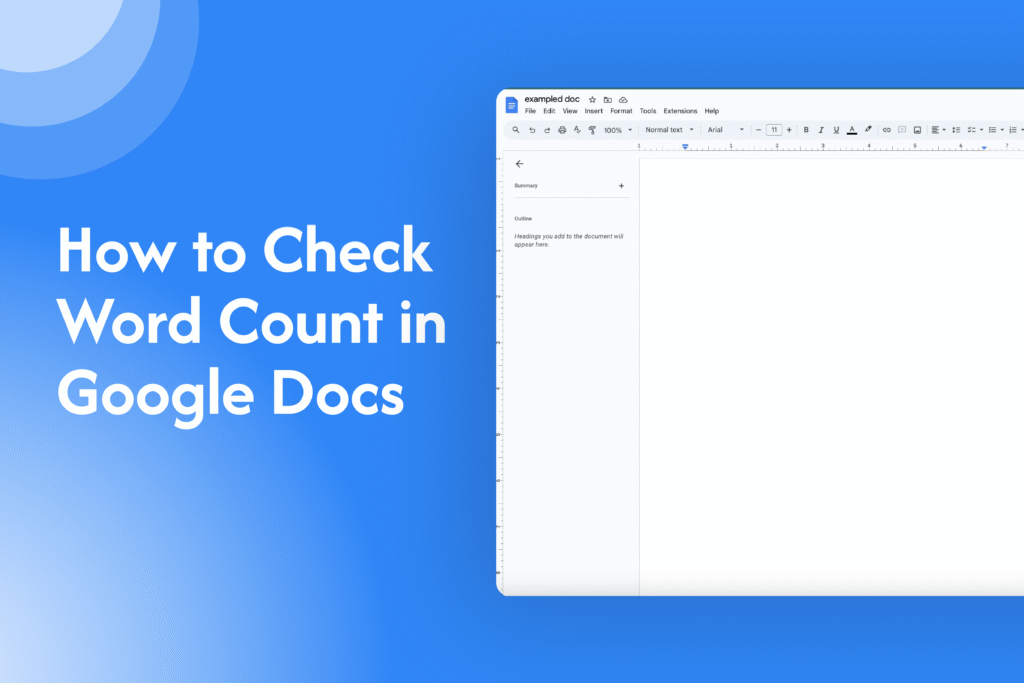
If you’re working on an assignment or article, learning how to check word count in Google Docs helps you stay within limits and track your progress.
Check word count using the menu
In Google Docs:
- Open your document
- Click on Tools in the top menu
- Select Word count
→ A pop-up will show word count, characters, and more
Use keyboard shortcut (faster way)
- Windows: Press Ctrl + Shift + C
- Mac: Press Command + Shift + C
→ Instantly opens the word count box
Check word count while typing
- Go to Tools → Word count
- Check Display word count while typing
→ Word count will appear at the bottom of your document
Check word count for selected text
- Highlight specific text
- Open Word count
→ It will show count for only the selected section
Why check word count
- Stay within word limits
- Track writing progress
- Meet academic or content requirements
Quick tip
Use the “display while typing” option if you need to keep an eye on word count in real time.






