
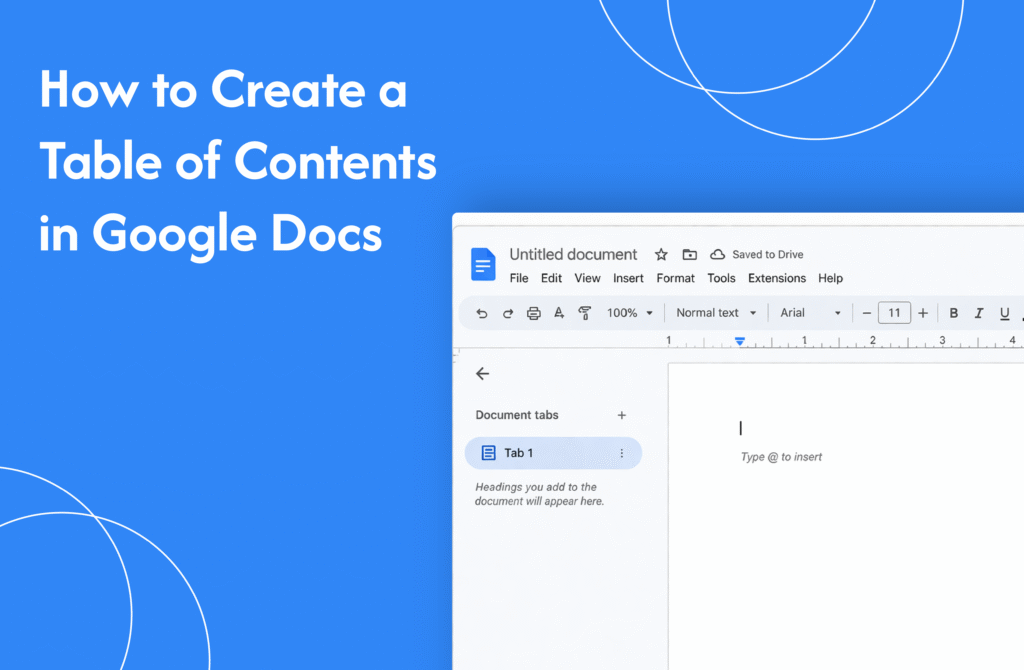
If you’re working on a long document, learning how to create a table of contents in Google Docs helps you organize sections and improve navigation.
Apply heading styles first
Before adding a table of contents in Google Docs:
- Select your section titles
- Click on the Styles dropdown (Normal text)
- Choose:
- Heading 1 (main sections)
- Heading 2 (subsections)
→ This structure is required for TOC to work
Insert table of contents
- Place your cursor where you want the TOC
- Click on Insert
- Select Table of contents
- Choose a style:
- With page numbers
- With links (for digital docs)
→ Your table of contents will be added
Update table of contents
- Click on the TOC
- Click the Refresh icon
→ Updates any changes automatically
Why use a table of contents
- Improves document structure
- Helps readers navigate easily
- Makes documents look professional
Quick tip
Always apply headings properly before inserting a TOC—otherwise it won’t capture your sections correctly.






