
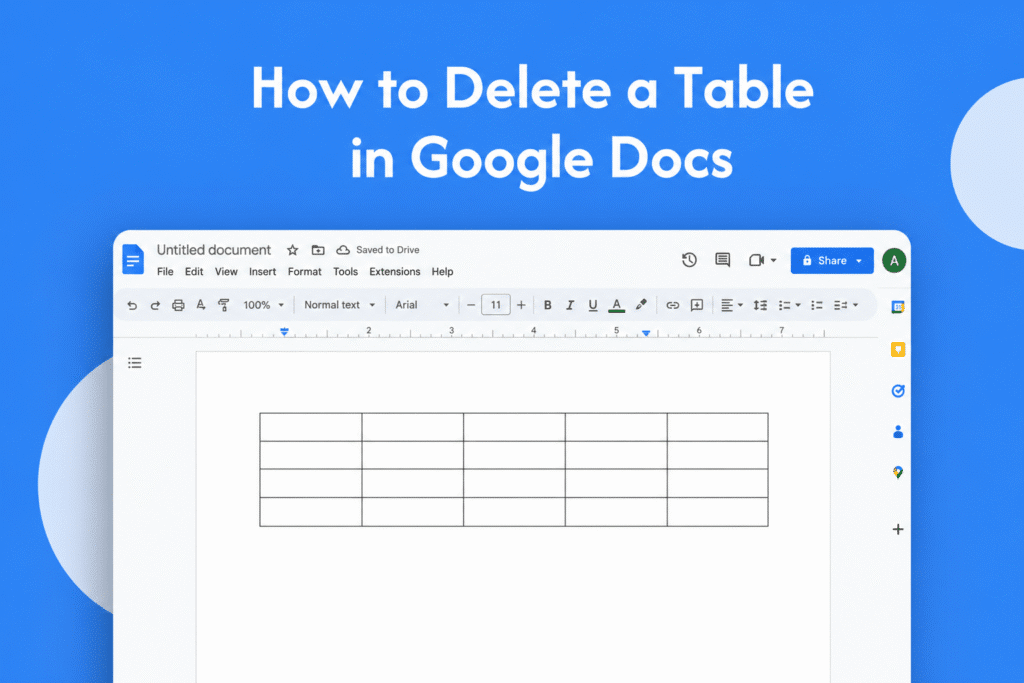
If you no longer need a table in your document, learning how to delete a table in Google Docs helps you remove it quickly without affecting the rest of your content.
Delete a table in Google Docs
In Google Docs:
- Open your document
- Click anywhere inside the table
- Right-click inside the table
- Select Delete table
→ The entire table will be removed instantly
Alternative method
- Click inside the table
- Go to Format → Table → Delete table
→ This also removes the table completely
Delete only table content
- Select the text inside the table
- Press Delete or Backspace
→ The table stays, but the content is removed
Why delete a table
- Clean up document formatting
- Remove unnecessary data
- Improve document layout
Quick tip
If you may need the table later, copy it before deleting so you can paste it back when needed.






