
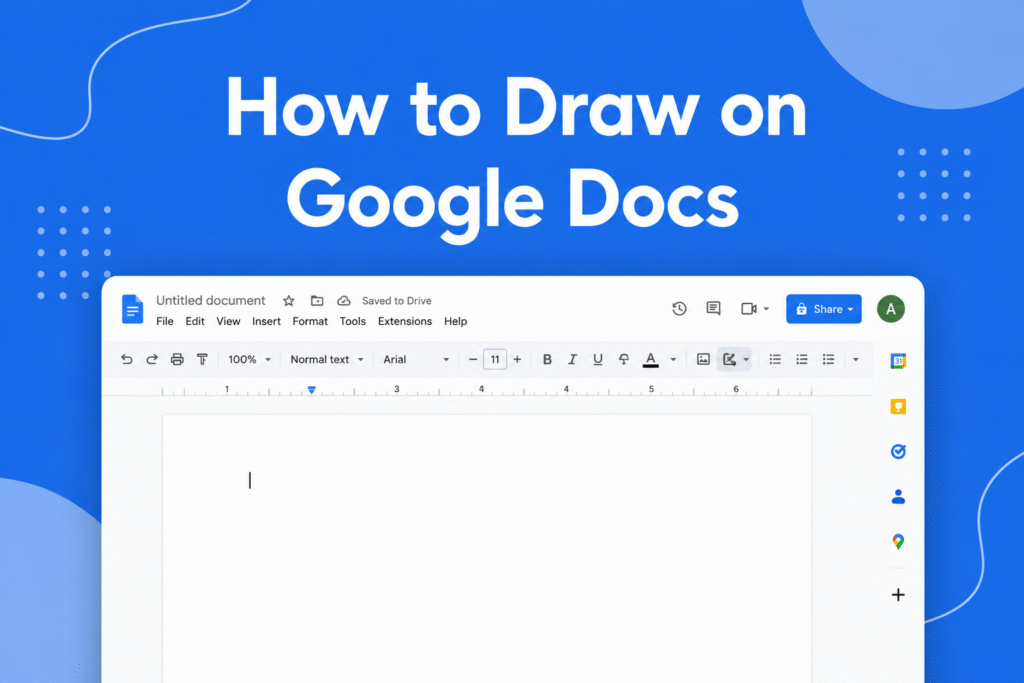
If you want to add diagrams, annotations, or sketches, learning how to draw on Google Docs helps you create more visual and interactive documents.
Use the Drawing tool in Google Docs
In Google Docs:
- Open your document
- Click on Insert
- Select Drawing → New
- Use the toolbar to add:
- Lines
- Shapes
- Arrows
- Text boxes
→ Your drawing will appear inside the document
Use the Scribble tool (freehand drawing)
- Open the Drawing window
- Click on the Line dropdown
- Select Scribble
- Click and drag your mouse to draw freely
→ Creates a freehand drawing
Edit your drawing
- Resize or move the drawing
- Double-click the drawing to edit it again
→ Easily update your visuals anytime
Why draw on Google Docs
- Add diagrams and flowcharts
- Highlight important information
- Make documents more engaging
Quick tip
Use simple shapes and clean lines to keep your drawings professional and easy to understand.






