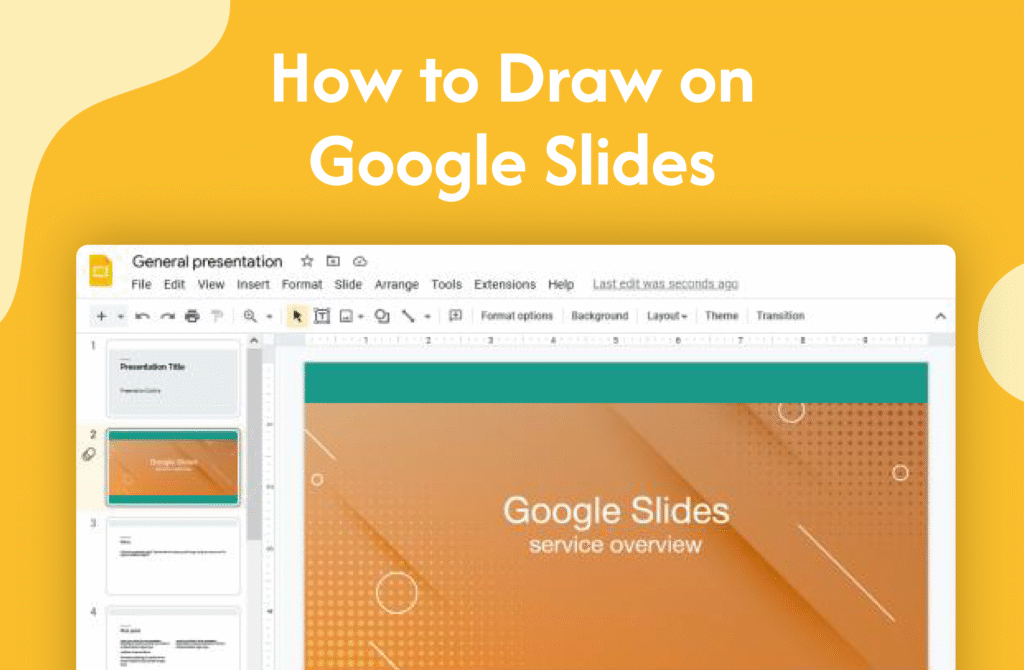
If you want to add shapes, annotations, or freehand drawings, learning how to draw on Google Slides helps you make your presentations more interactive.
Use the Scribble tool (freehand drawing)
In Google Slides:
- Open your presentation
- Click on Insert
- Select Line → Scribble
- Click and drag your mouse to draw
→ Your drawing will appear on the slide
Draw using shapes and lines
- Click on Insert → Shape
- Choose a shape (rectangle, circle, arrows, etc.)
- Click and drag to add it to your slide
→ Customize color, border, and size
Use Google Drawings (advanced option)
- Click Insert → Drawing → New
- Use drawing tools inside the popup
- Click Save and Close
→ Adds your drawing to the slide
Why draw on Google Slides
- Highlight key points
- Create diagrams and visuals
- Make presentations more engaging
Quick tip
Use contrasting colors for your drawings so they stand out clearly on your slides.