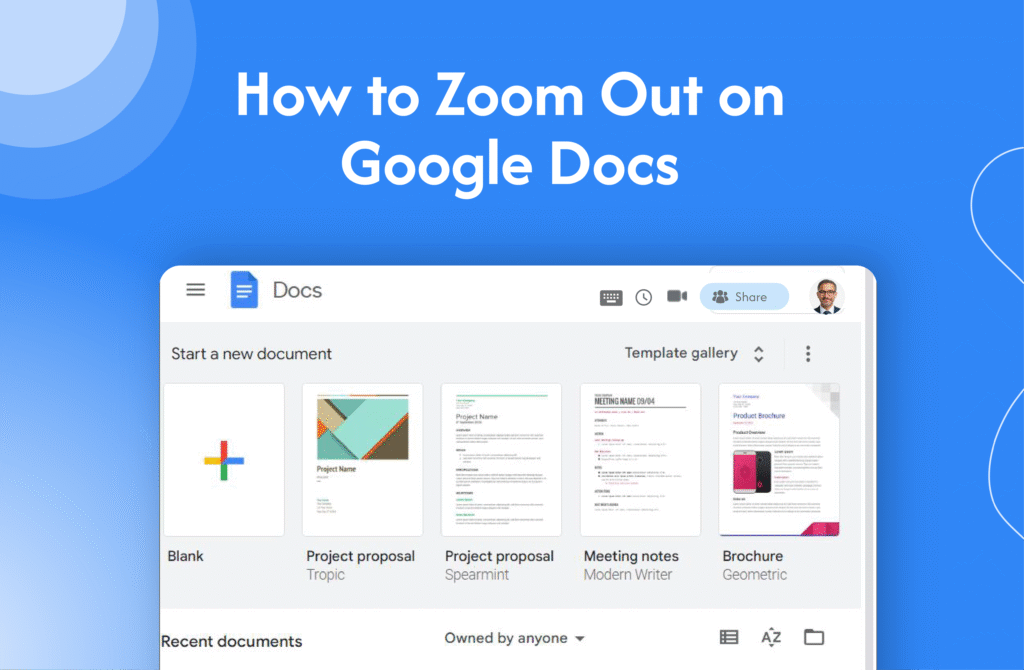
If your document looks too large or you want to see more content at once, learning how to zoom out on Google Docs helps you adjust the view easily.
Zoom out using the toolbar
In Google Docs:
- Open your document
- Look for the Zoom dropdown in the toolbar (e.g., 100%)
- Click on it
- Select a lower percentage (e.g., 75% or 50%)
→ Your document will zoom out instantly
Zoom out using browser shortcut
- Windows: Press Ctrl + – (minus key)
- Mac: Press Command + –
→ This zooms out the entire page
Fit document to screen
- Click the zoom dropdown
- Select options like:
- Fit
- Fit to width
→ Adjusts the view automatically
Why zoom out in Google Docs
- View more content at once
- Improve navigation
- Work more efficiently on large documents
Quick tip
Use the toolbar zoom for document-only changes and browser shortcuts when you want to adjust the entire page view.